Showing posts with label Remote Desktop. Show all posts

Sunday, April 7, 2013

Account Lockout and Management Tools

Download tools that you can use to troubleshoot account lockouts, as well as add functionality to Active Directory.

Overview

ALTools.exe contains tools that assist you in managing accounts and in troubleshooting account lockouts. Use these tools in conjunction with the Account Passwords and Policies white paper.

ALTools.exe includes:

  • AcctInfo.dll. Helps isolate and troubleshoot account lockouts and to change a user's password on a domain controller in that user's site. It works by adding new property pages to user objects in the Active Directory Users and Computers Microsoft Management Console (MMC).

  • ALockout.dll. On the client computer, helps determine a process or application that is sending wrong credentials.

  • Caution: Do not use this tool on servers that host network applications or services. Also, you should not use ALockout.dll on Exchange servers, because it may prevent the Exchange store from starting.
  • ALoInfo.exe. Displays all user account names and the age of their passwords.

  • EnableKerbLog.vbs. Used as a startup script, allows Kerberos to log on to all your clients that run Windows 2000 and later.

  • EventCombMT.exe. Gathers specific events from event logs of several different machines to one central location.

  • LockoutStatus.exe. Determines all the domain controllers that are involved in a lockout of a user in order to assist in gathering the logs. LockoutStatus.exe uses the NLParse.exe tool to parse Netlogon logs for specific Netlogon return status codes. It directs the output to a comma-separated value (.csv) file that you can sort further, if needed.

  • NLParse.exe. Used to extract and display desired entries from the Netlogon log files.

Friday, April 5, 2013

Remote Server Administration Tools for Windows 7 with Service Pack 1 (SP1)

Remote Server Administration Tools for Windows® 7 with SP1 enables IT administrators to manage roles and features that are installed on computers that are running Windows Server® 2008 R2, Windows Server® 2008, or Windows Server® 2003, from a remote computer that is running Windows 7 or Windows 7 with SP1.


Remote Server Administration Tools Installation Note


Download site: http://www.microsoft.com/download/en/details.aspx?id=7887

Only the 64 bit msu is required.

--------------------------------------------------


1. Run and install package.

2. Control Panel / Programs / Turn Windows features on or off

a. Expand "Remote Server Administration Tools"

b. Expand "Role Administration Tools"

c. Expand "AD DS and AD LDS Tools"

d. Expand "AD DS Tools"

e. Check "Active Directory Administrative Center"

Tuesday, March 19, 2013

XRDB

Connect to Ubuntu 12.04 (Precise Pangolin) via Windows Remote Desktop

Want to connect to Ubuntu 12.04 from Windows 7 via Remote Desktop Connection? Well, it’s now easy to do it with xRDP server. In the past, it was almost impossible to do but thanks to xRDP, you can easily use Microsoft RDP to connect to Ubuntu without any configuration.
All you need to do is install the xrdp package, then open Remote Desktop Connection from Windows and connect. That’s it, nothing to configure.
Without wasting anymore of your time, let’s get going.

Objectives:
  • Connect to Ubuntu from Windows via RDP Protocol
  • Enjoy!
To get started, press Ctrl – Alt – T on your keyboard to open Terminal. When it opens, run the commands below to install xRDP package.
sudo apt-get install xrdp

xrdp_precise

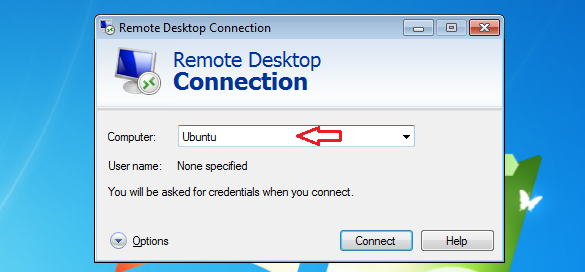
Next, open Windows’ Remote Desktop Connection and type Ubuntu hostname or IP address.

xrdp_precise_1
 
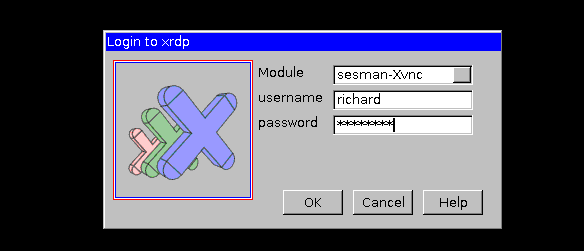
When prompted, type your Ubuntu username and password to connect.
 
xrdp_precise_2
 
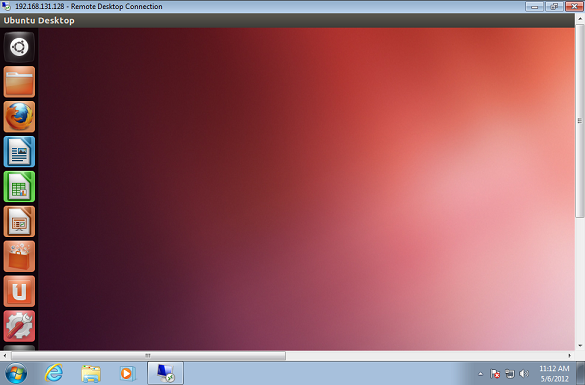
Enjoy!
 
xrdp_precise_3
 
If you have a problem connecting, run the commands below and restart Ubuntu, then try again.
echo "gnome-session --session=ubuntu-2d" > ~/.xsession
 
Or install gnome session fallback.
sudo apt-get install gnome-session-fallback

Saturday, February 16, 2013

Allow Remote Desktop connections from outside your home network


Ever wanted to access your home computer when you're away from home? If you have a home network, you can use Remote Desktop Connection to access your home PCs from outside the network. This can be handy when you're traveling or at work.

Note

There are six steps you'll need to follow to set this up. Each one is explained in detail below.
  1. Allow remote connections to the computer you want to access.
  2. Make sure Remote Desktop is able to communicate through your firewall.
  3. Find the IP address of the computer on your home network that you want to connect to.
  4. Open your router's configuration screen and forward TCP port 3389 to the destination computer's IP address.
  5. Find your router's public IP address so that Remote Desktop can find it on the Internet.
  6. Open Remote Desktop Connection and connect.

Allow remote connections to the computer you want to access

To access one computer from another computer, you first need to allow remote connections on the computer you want to access, which must be running one of the following versions of Windows:
  • Windows XP Professional edition
  • Windows Vista Business, Ultimate, or Enterprise edition
  • Windows 7 Professional, Ultimate, or Enterprise edition
On the computer you want to access, follow these steps:
  1. Open System by clicking the Start button Picture of the Start button, right-clicking Computer, and then clicking Properties.
  2. In the left pane, click Remote settingsAdministrator permission required If you're prompted for an administrator password or confirmation, type the password or provide confirmation.
  3. Under Remote Desktop, select one of the options to allow connections. For more information about these options, seeWhat types of Remote Desktop connections should I allow?
  4. Click Select Users.
  5. In the Remote Desktop Users dialog box, click Add.
  6. In the Select Users or Groups dialog box, do one or more of the following:
    • To specify the search location, click Locations.
    • To specify the types of objects (user names) that you want to search for, click Object Types.
    • In the Enter the object names to select box, type the user name that you want to search for, and then click Check Names. If the user name isn't found, click Advanced to run an advanced search.
  7. When you find the correct name, click OK.
    The name will be displayed in the list of users in the Remote Desktop Users dialog box.
  8. Click OK, and then click OK again.

Make sure Remote Desktop is able to communicate through your firewall

If you're using Windows Firewall, follow these steps:
  1. Click the Start button Picture of the Start button, click Control Panel, type "firewall" in the search box, and then click Windows Firewall.
  2. Click Allow a program or feature through Windows Firewall.
  3. Under Allowed programs and features, scroll down to Remote Desktop and make sure its check box is selected.
  4. Under Home/Work (Private), make sure the check box next to Remote Desktop is selected.
If you're using a non-Microsoft firewall, refer to the instructions that came with your firewall.

Find the IP address of the computer on your home network

Next, determine the IP address of the destination computer—the one you want to connect to.
  1. Click the Start button Picture of the Start button, click Control Panel, type "network" in the search box, and then click Network and Sharing Center.
  2. Next to Connections, click the link for your current network connection (either Wireless Network Connection or Local Area Connection).
  3. Click Details.
  4. Write down the IP address listed next to IPv4 Address. You'll need this address when you turn on port forwarding.

Forward TCP port 3389 to the destination computer's IP address

To allow remote connections from outside of your home network, you need to set up your router to forward remote access requests to the computer that you want to connect to.
  1. On any home network computer that's connected to the Internet, open a web browser and type the internal IP address of your router. This address will usually be 192.168.1.1, 192.168.0.1, or 192.168.2.1. Refer to the instructions that came with your router if you need more information about accessing the router's configuration screen.
  2. Type the router administrator user name and password.
  3. In the router's configuration screen, look for a place to turn on port forwarding (also called port mapping).
  4. Forward TCP port 3389, the default port for Remote Desktop Connection, to the IP address of the home computer you want to access from outside the network.
To access more than one of your home computers from outside the network, you can forward an additional TCP port to each additional computer. For example, you can forward TCP port 3390 to a second computer, TCP port 3391 to a third computer, and so on. Then change the listening port, the port that Remote Desktop listens to for incoming network traffic that matches that port, on each computer to match the number you assigned. When you use Remote Desktop Connection to connect to these computers, type the IP address of the router, followed by a colon and the port number (for example, 208.147.66.254:3390).
Changing the listening port is also helpful as a security measure, since a malicious user might first try port 3389, the default for Remote Desktop Connection. By changing the listening port, the malicious user has to guess which port you've chosen. For information about changing the listening port, see How to change the listening port for Remote Desktop on the Microsoft website.

Find your router's public IP address

While you're still at home and connected to your home network, open a web browser and search for "find IP address" to find a service that will report your router's public IP address. Unfortunately, some computers are given a different IP address each time they connect to the Internet. An Internet service provider (ISP) can use a few IP addresses to serve many customers that way, but it means that your computer's address on the Internet is always changing.
To get around the problem of a frequently changing IP address, try a DNS dynamic update service, which allows you to assign a URL to your router that you can use instead of an IP address. The URL stays the same no matter how often the IP address changes. To find a service, search for "DNS dynamic update" on the Internet.

Open Remote Desktop Connection and connect

Now you're ready to actually make the connection. Follow these steps on a computer outside of your network:
  1. Click the Start button Picture of the Start button, type "remote" in the search box, and then click Remote Desktop Connection.
  2. Type the router's public IP address in the Computer field (followed by a colon and the new port number, if you've changed the listening port; for example, 208.147.66.254:3390).
  3. Log on to the remote computer as you normally do.

Tuesday, September 1, 2009

uVNC


UltraVNC 1.0.6.5 Released !.

UltraVNC is a powerful, easy to use and free software that can display the screen of another computer (via internet or network) on your own screen. The program allows you to use your mouse and keyboard to control the other PC remotely. It means that you can work on a remote computer, as if you were sitting in front of it, right from your current location. If you provide computer support, you can quickly access your customer's computers from anywhere in the world and resolve helpdesk issues remotely! With addons like SingleClick your customers don't even have to pre-install software or execute complex procedures to get remote helpdesk support.


Key features: File transfer, Video driver, Optional Encryption Plugins, MS Logon, Text chat, Viewer Toolbar, Java Viewer with File Transfer , as well as Auto scaling and Server Side Scaling, Multiple-Monitors-support,Repeater/Proxy-support, Auto reconnection, good performances and tons of other functionalities..

Addons: Repeater , SingleClick generator and NATtoNAT connectors , that help you to easily handle the most complex connection situations..

UltraVNC runs under Windows operating systems (95, 98, Me, NT4, 2000, XP, 2003...). Its embedded Java Viewer allows you to connect (and make File transfers) from a simple Web Browser on any Operating system supporting Java (Linux, Mac OS...) to an UltraVNC server.


Download

Wednesday, August 26, 2009

Ammyy Admin


Ammyy Admin is a highly reliable and very friendly tool for remote computer access. You can provide remote assistance, remote administration or remote teaching for your clients, employees and friends regardless of their location. Ammyy Admin connects remote computers within seconds without any installation or configuration. You can view and/or control (using your keyboard and mouse) any applications running on the remote computers.

How to use (quick guide)
Client
"Operator" will see your computer display Operator
You'll see the display of "Client"
1.Say your ID to "Operator" 1.Click to the "Operator" tab
2.Press the "Start" button 2.Enter the client ID and press the "Connect" button
3.Press the "Accept" button, when an operator is connecting


Key Features
Access computers from anywhere

Instant remote computer access

No installation required

Remote administration of unattended servers

Maximum security

Support Microsoft RDP

Voice chat
Free for non-commercial use!

Transfer files either direction

No need real IP adress and port forwarding setup

Firewall friendly

Support HTTPs proxy (100% secure connection)

Full compatibility with Windows 2000/XP/2003/Vista/2008, 32-bit and 64-bit


Download

Thursday, April 2, 2009

Team Viewer


Remote Desktop Sharing - Remote Access - Support

TeamViewer establishes connections to any PC or server all around the world within just a few seconds. You can remote control your partner's PC as if you were sitting right in front of it. Find out why more than 15.000.000 users trust TeamViewer!

Simple - fast - secure.


The one-stop solution for desktop sharing

TeamViewer is the fast, simple and friendly solution for remote access over the Internet - all applications in one single, very affordable module:

Remote access to PCs and servers via Internet

Instantly take control over a computer anywhere on the Internet, even through firewalls. No installation required, just use it fast and secure.

Training, sales and teamwork

TeamViewer can also be used to present your desktop to a partner on the Internet - great for team collaboration, trainings and sales presentations.

File transfer, chat and more

Share your files, chat, switch the direction during a teamwork session, and a lot more is included in TeamViewer.

Great software - great pricing
free for non-commercial, personal use

With more than 15.000.000 users TeamViewer is one of the biggest providers on the market, which allows us to keep our pricing very, very low - please check out our open and fair pricing structure.
TeamViewer is completely free for non-commercial, personal use!


Multi platform - from Windows to Mac OS X

TeamViewer is available for multiple platforms, from Windows to Apple Mac OS X - and can even be used for cross-platform connections from Windows to Mac and back!


Saturday, March 14, 2009

Log Me In

Acceso y soporte remoto seguro y on-demand (a petición del usuario)
Más de 60 millones de dispositivos conectados en todo el mundo a través de LogMeIn
LogMeIn es el proveedor líder de soluciones de soporte, de conectividad remota y a petición de pequeñas empresas, proveedores de servicios de TI y usuarios.
Las empresas y los proveedores de servicios de TIC usan las soluciones de LogMeIn para ofrecer soporte remoto al usuario final y para acceder y gestionar ordenadores y otros dispositivos a través de Internet de manera efectiva y eficiente. Los usuarios de móviles y las personas que lo utilizan para trabajar, usan nuestras soluciones para acceder a sus recursos informáticos de forma remota, para facilitar así la movilidad y aumentar la productividad.
Nuestras soluciones, que se despliegan a petición del usuario y a las que se puede acceder mediante un navegador web, son seguras, ampliables y fáciles de probar, adquirir y utilizar. Desde que lo desarrollamos, nuestros usuarios han conectado más de 60 millones de ordenadores y otros dispositivos con Internet a un servicio LogMeIn.
El paquete de soluciones de software como servicio de LogMeIn incluye funciones de soporte al cliente on-demand (a petición del usuaio) para ordenadores, teléfonos inteligentes y otros dispositivos, administración de sistemas, acceso remoto, intercambio de archivos, sistemas de redes privadas virtuales, copias de seguridad de datos y reuniones virtuales en línea.